Você está pronto para mergulhar no mundo incrível do Roblox diretamente do seu celular? Neste guia, vamos explicar tudo o que você precisa saber para começar a jogar Roblox no seu dispositivo móvel. Desde os passos para baixar e instalar o aplicativo até as diferenças entre Android e iOS, nós cobrimos tudo! Prepare-se para descobrir os controles mobile, otimizar o desempenho do jogo e até mesmo conectar-se com amigos enquanto se diverte. Vamos juntos nessa aventura!
Como acessar e jogar Roblox no seu dispositivo móvel?
Para jogar Roblox no celular, você precisa seguir alguns passos simples.
Ads
Primeiro, baixe e instale o aplicativo Roblox. Para os usuários de Android, você pode encontrar o jogo na Google Play Store. Se você é um usuário de iOS, procure por Roblox na App Store. Clique em “Instalar” e aguarde o download.
Agora, vamos falar sobre compatibilidade. Antes de baixar, verifique se seu dispositivo atende aos requisitos do sistema. No caso do Android, a plataforma recomendada é o Android 4.4 ou superior, enquanto para iOS, você precisa de pelo menos iOS 9.0. Para detalhes específicos, consulte as diretrizes de compatibilidade do dispositivo Roblox. Isso evita frustrações ao tentar jogar em um dispositivo que não suporta o jogo.
As diferenças na instalação entre Android e iOS são mínimas em termos de passos, mas os usuários de Android podem precisar permitir a instalação de aplicativos de fontes desconhecidas, se estiverem baixando de fora da Play Store. No iOS, o processo é geralmente mais straightforward, mas você precisa confirmar algumas permissões após a instalação.
Após a instalação, abra o aplicativo e faça login com sua conta Roblox ou crie uma nova, se necessário. Navegue pelos jogos e escolha um que você queira jogar. A interface é intuitiva – você verá várias opções de jogos populares e novos, prontos para explorar. Também é possível adicionar Roblox Gift Cards ao seu saldo para comprar Robux e aprimorar sua experiência.
Em resumo, jogar Roblox no celular é acessível. Com um toque na tela, você pode embarcar em novas aventuras, criar mundos e interagir com amigos. Seja pronto para divertir-se e explorar o infinito universo de possibilidades que Roblox oferece.
Quais são os controles disponíveis para Roblox no celular?
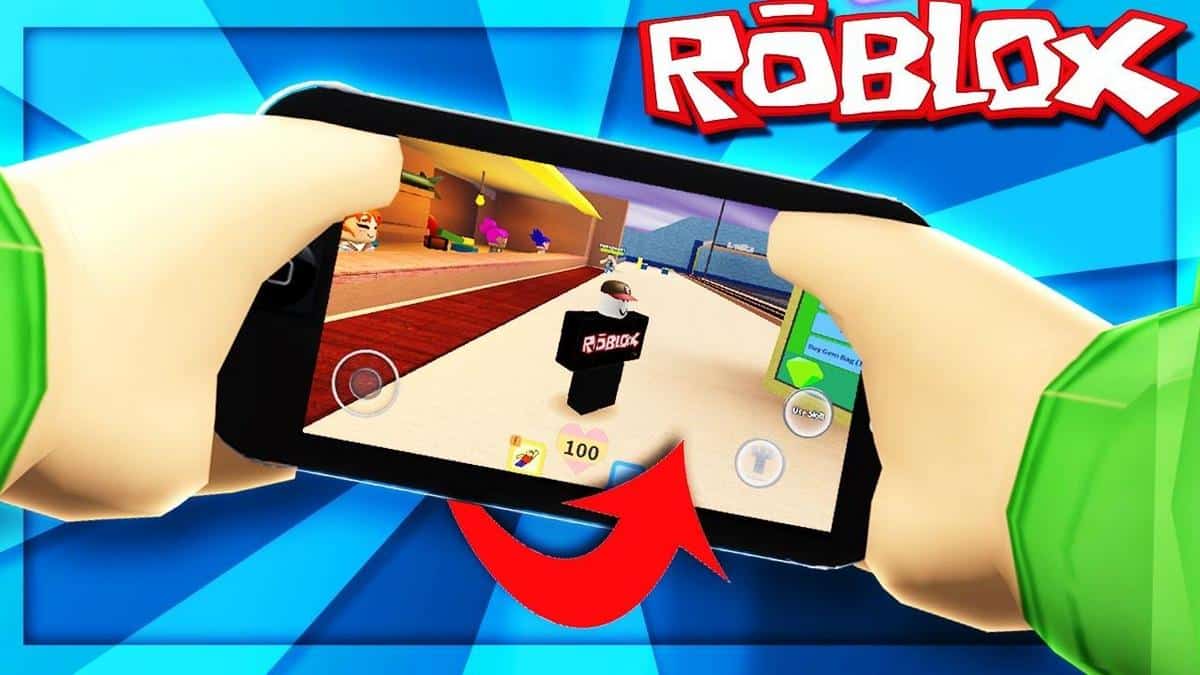
Os controles na versão móvel do Roblox são projetados para serem simples e acessíveis. No seu celular, você usará uma combinação de tela de toque e botões virtuais. A movimentação é realizada através de um joystick virtual na parte inferior esquerda da tela, enquanto o botão de ação e a câmera são controlados na parte inferior direita. Essa configuração permite que você navegue pelos mundos de Roblox com facilidade, mas pode exigir um pouco de prática para dominar.
Aqui vão algumas dicas para melhorar sua experiência de jogo usando os controles móveis:
- Pratique os movimentos: Comece em jogos mais simples para se acostumar com a resposta do joystick virtual. Quanto mais você jogar, melhor irá se familiarizar com os comandos.
- Ajuste a sensibilidade da câmera: Em muitos jogos, você pode ajustar a sensibilidade da câmera nas configurações. Isso pode ajudar a tornar a visualização mais confortável, especialmente em jogos de ação rápida.
- Desative notificações: Para evitar distrações durante o jogo, considere desativar notificações de outros aplicativos. Assim, você pode se concentrar totalmente na diversão!
Agora, se você encontrar problemas com os controles, não se preocupe! Primeiro, verifique se o aplicativo está atualizado; bugs podem ser corrigidos em versões mais recentes. Outro passo é reiniciar o jogo ou até mesmo o dispositivo. Se isso não funcionar, você pode conferir o artigo sobre soluções para dispositivos móveis no site oficial. Este guia oferece várias dicas úteis para resolver problemas comuns, garantindo que seus controles funcionem corretamente.
Caso ainda enfrente dificuldades, considere ajustar a configuração do dispositivo. Cheque se há algum aplicativo em segundo plano que possa estar consumindo muitos recursos. Isso pode interferir no desempenho do Roblox e na reação dos controles.
Com um pouco de paciência e as dicas acima, você pode aprimorar sua experiência jogando Roblox no celular. É só ir testando e se divertindo enquanto aprende a dominar esses controles!
Como otimizar a performance do Roblox no seu dispositivo móvel?
Para garantir uma ótima experiência ao jogar Roblox no celular, é fundamental otimizar o desempenho do seu dispositivo.
Quais são as configurações recomendadas para melhorar o desempenho?
Primeiramente, recomenda-se ajustar as configurações gráficas do jogo. Reduzir a qualidade gráfica e desativar efeitos visuais como sombras pode fazer uma grande diferença na fluidez do jogo. Você pode encontrar essas opções nas configurações do aplicativo, onde também é possível ajustar o controle de qualidade de streaming, que pode ajudar dependendo da sua conexão com a internet.
Como resolver problemas de lag durante o jogo?
O lag é um dos maiores inimigos dos gamers, e aqui estão algumas dicas para combatê-lo. Comece fechando outros aplicativos que possam estar rodando em segundo plano. Isso libera memória e recursos do dispositivo, permitindo que o Roblox funcione melhor. Outra dica é usar uma conexão Wi-Fi estável sempre que possível, já que dados móveis podem ser inconstantes, resultando em interrupções durante o jogo. Se você continua enfrentando problemas, uma visita ao site de suporte da Roblox pode fornecer detalhes adicionais sobre como continuar a otimização.
Como gerenciar o uso de dados móveis enquanto joga Roblox?
Gerenciar o uso de dados móveis é crucial, especialmente se você não possui um plano ilimitado. Para isso, nas configurações do aplicativo Roblox, você pode ajustar a opção de “Usar Dados Móveis”. Isso evitará que o jogo consuma grandes quantidades de dados quando você não estiver em Wi-Fi. Também é aconselhável monitorar o uso de dados através das configurações do seu celular, para que você tenha uma noção de quanto da sua franquia está sendo utilizada.
Seguindo essas dicas, você vai perceber uma grande melhora no desempenho do Roblox no seu celular. Além de jogar com mais fluidez, a experiência geral se tornará mais divertida e menos frustrante. Explore essas configurações e descubra o que funciona melhor para o seu dispositivo!
Quais opções de configuração estão disponíveis para usuários móveis no Roblox?
No Roblox, as opções de configuração para usuários móveis são essenciais para garantir uma experiência de jogo segura e agradável. Vamos explorar algumas dessas configurações.
Para ajustar as configurações de privacidade no aplicativo, vá até o menu “Configurações” dentro do jogo. Aqui, você pode controlar quem pode enviar solicitações de amizade, mensagens e interagir com você. Se você deseja que sua experiência seja mais privada, é aconselhável restringir a interação de jogadores não amigos. Isso é especialmente importante para proteger as crianças dos perigos da interação online.
As atualizações móveis são outra parte fundamental da experiência no Roblox. Elas geralmente trazem melhorias, novos recursos e correções de bugs. As atualizações podem afetar a performance do jogo e até mesmo introduzir novos modos ou funcionalidades que você poderá explorar. Ficar por dentro dessas atualizações é uma boa prática e garante que você sempre jogue na sua melhor versão. Por isso, verifique periodicamente a loja de aplicativos para saber se há novas versões disponíveis.
Outro ponto vital são as opções de controle parental. O Roblox oferece ferramentas para que pais ou responsáveis possam supervisionar a atividade dos jogadores. Você pode configurar limites para o que seu filho pode fazer, como limitar quem pode se conectar ao perfil deles ou restringir chat ao texto apenas. Isso permite que as crianças joguem de forma segura, enquanto os pais mantêm um olho sobre a atividade deles.
Essas configurações não são apenas opcionais, mas recomendadas para qualquer pessoa que deseja jogar Roblox no celular, especialmente para os mais jovens. Se você não estiver familiarizado com essas opções, não se preocupe, elas são intuitivas e você pode ajustá-las a qualquer momento, assim garantindo que a diversão nunca seja interrompida por preocupações.
Como se conectar e jogar com amigos no Roblox móvel?
Para adicionar amigos e configurar partidas multiplayer no Roblox, basta seguir alguns passos simples. Primeiro, você precisa criar uma conta e fazer login no aplicativo. Depois, localize o ícone de amigos no menu principal. Você pode procurar amigos pelo nome de usuário e enviar solicitações de amizade. Assim que eles aceitarem, você pode começar a jogar juntos!
Lembre-se de que a configuração de partidas multiplayer é fácil. Ao entrar em um jogo, procure pela opção de convidar amigos no menu do jogo. Se você estiver jogando um título que permite múltiplos jogadores, seus amigos aparecerão como opção de convite. Uma verdadeira diversão em grupo!
Segurança é sempre importante, especialmente em jogos online. Existem algumas melhores práticas para garantir que você jogue de forma segura com seus amigos. Antes de adicionar alguém, certifique-se de que você conhece a pessoa ou tenha confirmação de que é alguém confiável. Ajuste suas configurações de privacidade no aplicativo para controlar quem pode enviar solicitações de amizade ou ver a sua atividade.
Além disso, convém utilizar recursos sociais para melhorar a interação na comunidade Roblox. O aplicativo permite que você envie mensagens diretas para amigos, o que pode ser uma ótima maneira de planejar o próximo jogo. Ative notificações para saber quando seus amigos estão online ou quando eles começam uma partida. Isso facilita muito a comunicação e torna a experiência de jogo mais envolvente. E lembre-se de que a diversão é ainda maior quando compartilhada! Portanto, siga essas dicas e prepare-se para muitas aventuras no mundo do Roblox.
Conclusão
Acessar e jogar Roblox no celular é uma experiência divertida e bastante acessível. Neste artigo, exploramos os passos para baixar e instalar o aplicativo, como verificar a compatibilidade do seu dispositivo e as nuances entre Android e iOS. Discutimos também os controles móveis, dicas para otimizar o desempenho e configurar preferências no app, assim como formas de se conectar e jogar com amigos. Com essas orientações, você pode aproveitar ao máximo suas aventuras no universo do Roblox, unindo-se a amigos e explorando mundos criativos com facilidade.
FAQ
FAQs sobre jogar Roblox no celular
1. Como posso baixar e instalar o Roblox no meu celular?
Para baixar e instalar o Roblox, vá até a Google Play Store (Android) ou a App Store (iOS) e procure por Roblox. Clique em “Instalar” e aguarde o download. Certifique-se de que seu dispositivo atenda aos requisitos do sistema.
2. Quais controles estão disponíveis para jogando Roblox no celular?
Os controles do Roblox móvel incluem um joystick virtual na parte inferior esquerda para movimentação e botões de ação na parte inferior direita. Você pode ajustar a sensibilidade da câmera nas configurações e praticar os movimentos para melhorar sua experiência.
3. Como posso otimizar o desempenho do Roblox no meu dispositivo móvel?
Você pode otimizar o desempenho reduzindo a qualidade gráfica nas configurações do jogo e fechando aplicativos em segundo plano. Usar uma conexão Wi-Fi estável também ajuda a minimizar o lag durante o jogo.
4. O que devo fazer para gerenciar o uso de dados móveis enquanto jogo?
Para gerenciar o uso de dados móveis, vá às configurações do aplicativo Roblox e ative a opção “Usar Dados Móveis”. Isso ajudará a proteger seu plano de dados, especialmente quando não estiver conectado a uma rede Wi-Fi.
5. Como posso me conectar e jogar com amigos no Roblox?
Depois de criar uma conta e fazer login, você pode adicionar amigos pelo nome de usuário e enviar solicitações de amizade. Na hora de jogar, encontre a opção de convidar amigos no menu do jogo para compartilhar a diversão!
Content created with the help of Artificial Intelligence.